For any media request type (HTTP or RTMP), Neotys Design Studio can be configured to process the request specifically.
The media request must be selected in the User Paths tree.
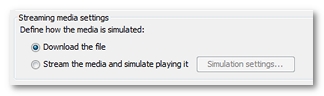
The Streaming media settings group box makes it possible to:
download the file like a regular resource, or
simulate the media playback.
Media file download
A media request can be defined to download the file when the Download the file option is selected in the Streaming media settings group box. The playback statistics are then unavailable. Neotys Design Studio process the request like a regular one.
To configure a media request to download
Develop the User Path tree and select a media request.
In Streaming media settings, select Download the file.
Media file playback
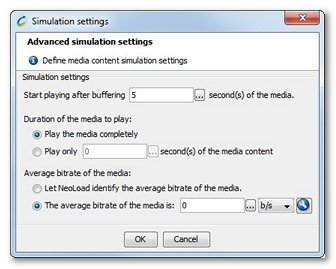
A media request can defined to simulate the media playback when the Stream the media and simulate playing it option is selected in the Streaming media settings group box. A click on the Simulation settings button displays the dialog to specify the request simulation parameters.
The Start playing after buffering field helps define the time spent to fill in the buffer when starting the video. The value can be a number of seconds or a variable defined with a click on the selection button.
In the Duration of the media to play group box, the time spent on simulating the media content can be defined:
The Play the media completely option means that the whole media is played in the load test scenario.
The Play only X seconds of the media content option is useful to play only an extract of the media. The value can be a number of seconds or a variable defined with a click on the selection button.
In the Average bitrate of the media group box, the stream quality of the media can be defined for the replay:
When the Let Neotys Design Studio identify the average bitrate of the media option is selected, the average downstream rate of the media is defined by Neotys Design Studio. Neotys Design Studio can figure out the average rate of some codecs: MPEG-4, FLV, F4V, AVI, MP3, and IceCast.
When the average downstream rate cannot be processed in Neotys Design Studio, it is necessary to specify it. The value for The average bitrate of the media option can be set in b/s, Kb/s, Mb/s, or Gb/s :
directly in the field,
with a variable that can be defined with a click on the selection button, or
with the Compute average bitrate wizard accessible with the wrench-like button. With the media length and the overall size of the file, the wizard automatically defines the bitrate. For more information, see Post-recording wizard.
A click on the OK button closes the Simulation settings box. Neotys Design Studio then downloads the file and reads it with the average downstream rate specified. Similarly to a use playing the media in a browser, Neotys Design Studio reproduces the playback, but without displaying it.
To configure a media request to play
Develop the User Path tree and select a media request.
In Streaming media settings, select Stream the media and simulate playing it.
Click Simulation Settings.
In the Simulation settings box:
In Start playing after bufferring, define the time in seconds to fill in the buffer.
In Duration of the media to play:
Select Play the media completely, or
Select and define the value for Play only X seconds of the media content to replay only an extract of the media.
In Average bitrate of the media:
Select Let Neotys Design Studioidentify the average bitrate of the media, or
Select and define the value for The average bitrate of the media to specify the simulated media stream flow for the replay.