Designing a project consists in recording a web browsing sequence. Neotys Design Studio keeps track of every browsing action to create a synthetic user: the Virtual User. The Virtual User helps generate a behavior pattern, called User Path.
Warning: Before recording the scenario, it is recommended to close all HTTP client applications (other Web sessions, Twitter client, and so on). Neotys Design Studio records all the HTTP flows going through the machine. It is necessary to close HTTP clients or define exclusion rules in Neotys Design Studio to avoid unwanted requests in the recording.
To design a project
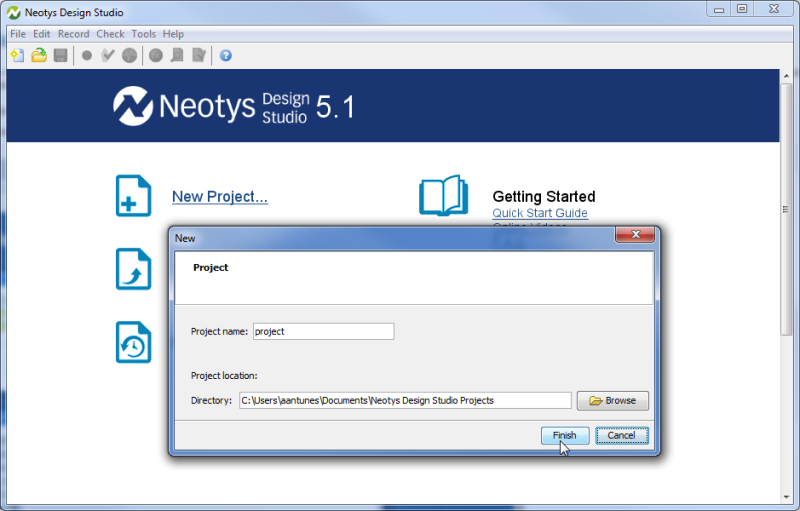
In the menu bar, choose File > New to create a project.
Enter a name and location for your project and click Finish.
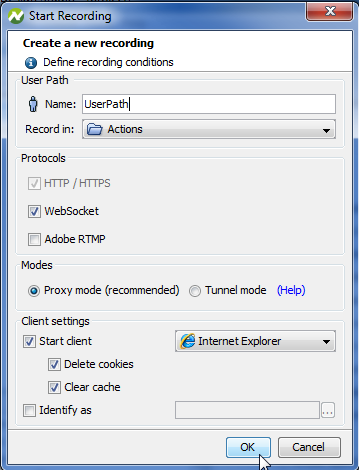
In the menu bar, choose Record > Start Recording.
In the Start Recording dialog, create a User Path by entering a name and configuring the recording settings of the browsing sequence you are about to capture.
In the displayed web browser, enter the URL of the website or application you want to test. Browse as usual. Neotys Design Studio records all your actions.
While recording (or after), organize the visited pages in different Transactions and structure your scenario in the Recording bar. Subsequently you can configure them for reuse in other User Paths.
Once you are done with the browsing sequence, click the Stop Recording icon in the Recording bar.
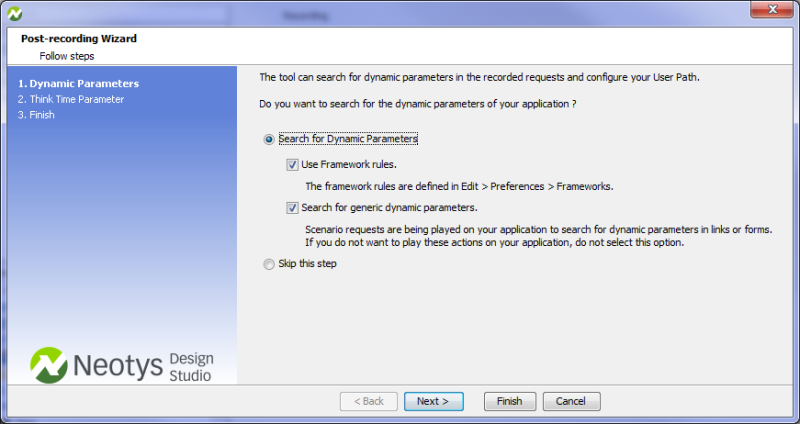
In the Post-recording Wizard, follow the steps to configure your User Path and click Finish.
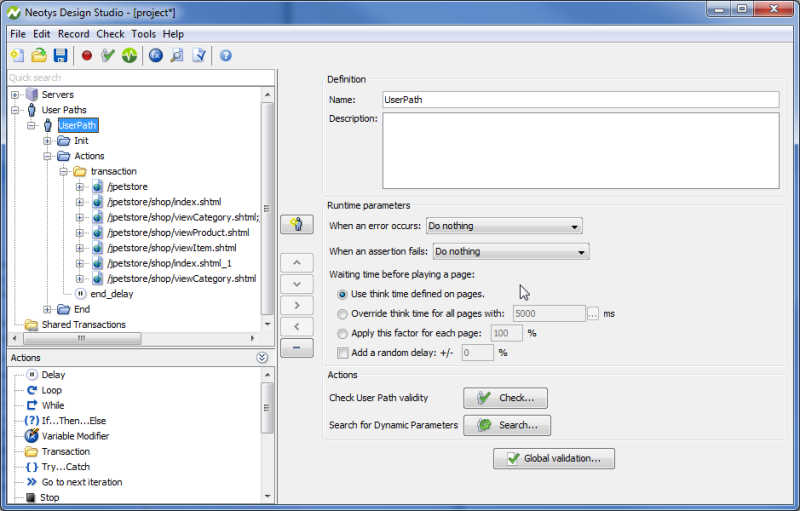
Configure the settings of the User Path in the Runtime Parameters section.
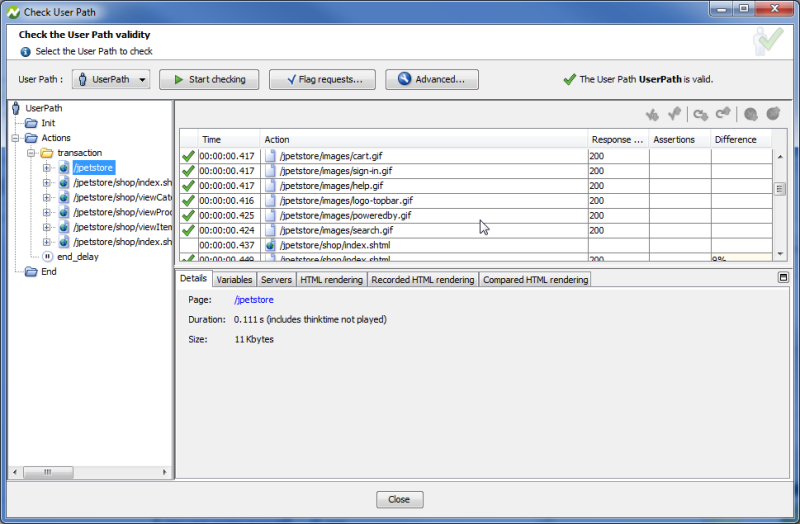
In the menu bar, choose Check > Start checking to verify the User Path —and fix errors or unexpected behavior. Check the requests and responses paying attention to every potential error raised by Neotys Design Studio.